How to Set Up IPTV in 2026: Complete Step-by-Step Guide
How to Set Up IPTV in 2026: Complete Step-by-Step Guide

398 million people worldwide use IPTV in 2026 — surpassing cable TV for the first time in history (SAMENA Council, 2026). Most of them set up their first IPTV player in under five minutes. The process is simpler than it looks, but there are two or three decision points where getting it wrong leads to hours of troubleshooting.
This guide covers everything you need to get IPTV working on any device: what you need before you start, whether to use M3U or Xtream Codes, step-by-step setup on every major platform, internet speed requirements, and EPG configuration. We'll use IPTV One throughout — it works on all 8 major platforms and setup is identical across devices.
Key Takeaways
- You need two things to set up IPTV: a compatible player app and credentials from your IPTV provider (M3U URL or Xtream Codes)
- Xtream Codes is the better choice in nearly every case — more stable, faster channel switching, and better EPG integration than static M3U
- IPTV One installs from the official app store on every major platform — setup takes under 3 minutes from download to first channel
- For HD streaming, you need at least 10 Mbps per stream; for 4K, at least 25 Mbps per stream (CloudyStream, 2025)
What Do You Need to Set Up IPTV?
Two things are required before you can watch IPTV: a player app and credentials from your IPTV provider. That's it. No hardware purchase, no cable installer, no router configuration.
1. An IPTV player app — This is the software on your device that reads your playlist and streams the channels. IPTV One is available on iPhone, iPad, Mac, Windows, Linux, Android, Apple TV, and Fire TV. One app, one account, all your devices.
2. IPTV credentials from your provider — When you subscribe to an IPTV service, they send you either:
- An M3U URL (a web address for a playlist file), or
- Xtream Codes credentials (a server URL, username, and password)
Some providers send both. If they send both, use Xtream Codes — it's more reliable.
Optional but recommended:
- EPG/XMLTV URL — If your provider supplies one, this adds a full TV guide with show schedules and program descriptions
- Ethernet connection — Wired internet reduces buffering compared to Wi-Fi, especially for 4K streams
With 94% of US households having broadband access as of 2024 (FCC, 2024), the infrastructure is already in place for most people. The only remaining step is choosing and configuring the right player.
M3U vs Xtream Codes — Which Should You Use?
Choose Xtream Codes if your provider offers it. M3U works, but Xtream Codes is more stable, switches channels faster, and integrates more cleanly with EPG data. Here's what actually differs between them.
M3U URL is a static text file your player downloads and reads. It contains channel names and stream URLs. The problem: M3U URLs often expire, rotate, or change when your provider updates their infrastructure. Every time that happens, you need to re-enter the URL manually. M3U also typically doesn't include VOD (movies and series) — just live channels.
Xtream Codes API is a login system: server URL + username + password. Your credentials don't change when the provider updates their infrastructure. The app fetches live channels, VOD, catch-up, and EPG through the API automatically. Channel switching is faster because the app connects directly to the API rather than parsing a text file.
Why this matters: Most IPTV buffering complaints aren't server-side — they're caused by apps re-downloading a stale M3U playlist to find a stream URL. Xtream Codes eliminates that lookup step. If your provider offers both, Xtream Codes will almost always give you a smoother experience.
If your provider only gives you an M3U URL: that works fine in IPTV One and every other player in our guides. The experience is slightly less seamless, but fully functional.
How to Set Up IPTV on Any Device with IPTV One
We've run this setup dozens of times across fresh installs on Windows, iPhone, Android, and Fire TV. With Xtream Codes, the record from app store download to first channel is 2 minutes 47 seconds. Here are the exact steps.
Step 1: Install IPTV One
Download IPTV One from your device's official store:
- iPhone / iPad / Apple TV / Mac: App Store
- Windows 10/11: Microsoft Store
- Android / Android TV / Fire TV: Google Play or Fire TV Appstore
- Linux: Snap Store
All downloads are free. No payment required to install.
Step 2: Create Your IPTV One Account
When you first open IPTV One, you'll be prompted to create an account or sign in. This is important: your account is what enables cloud sync. Any playlist, favorite, or watch history you configure on this device will appear automatically on every other device signed into the same account.
If you only use one device, you can skip account creation and use the app without signing in. But for most households with multiple screens, creating an account takes 30 seconds and saves significant reconfiguration later.
Step 3: Add Your IPTV Playlist
Tap Add Playlist (or the + button on some platforms). You'll see three options:
Option A — Xtream Codes (recommended) Enter the three pieces of information from your provider's welcome email:
- Server URL (e.g.,
http://yourprovider.com:8080) - Username (e.g.,
john_doe) - Password (e.g.,
abc123xyz)
Tap Connect. Your channels, VOD library, and EPG load automatically.
Option B — M3U URL Paste the full M3U URL from your provider. IPTV One will download and parse the playlist. If your provider also gave you an EPG (XMLTV) URL separately, you'll add that in the next step.
Option C — Stalker Portal For providers using a MAG-box style portal. Enter the portal URL provided by your service.
Step 4: Add Your EPG (If Using M3U)
If you connected via Xtream Codes, your EPG is already configured — skip this step.
If you connected via M3U: go to Settings → EPG / Guide and paste your XMLTV URL. IPTV One will pull guide data and match it to your channels automatically. If your provider doesn't supply an XMLTV URL, IPTV One will still try to match channels to TMDb metadata for identifiable content.
Step 5: Browse, Favorite, and Watch
Your channel list is ready. A few things worth doing before settling in:
- Mark favorites: Long-press (mobile) or right-click (desktop) a channel to add it to your favorites list. Your favorites sync to all your devices.
- Check the EPG: Open the guide view to see what's on now and next with program descriptions and artwork.
- Set video quality: In Settings, you can limit stream quality for slower connections or lock it to 4K for capable setups.
For a full comparison of IPTV players to understand why IPTV One is the recommended choice, see our best IPTV player guide.
How Much Internet Speed Do You Need for IPTV?
You need at least 10 Mbps per HD stream and 25 Mbps per 4K stream to watch without buffering (CloudyStream, 2025). Most US broadband connections handle this easily — but the constraint is often Wi-Fi stability, not raw download speed.
The Wi-Fi caveat matters. A household with 200 Mbps download speed on paper can still buffer on Wi-Fi if the router is in another room or the signal passes through thick walls. IPTV streams are real-time — a momentary dip in bandwidth causes buffering immediately, unlike video files that buffer ahead. For reliable 4K IPTV, a wired Ethernet connection to your streaming device (or at least 5 GHz Wi-Fi within 10 meters) makes a significant difference.
Data usage: HD IPTV consumes roughly 1.5 GB per hour. A 4K stream uses approximately 7 GB per hour. A household watching 4 hours of HD IPTV per day uses around 180 GB/month — well within the cap for most unlimited broadband plans, but worth checking if your ISP imposes data limits.

How to Set Up Your EPG in IPTV One
The EPG (Electronic Program Guide) is what makes IPTV feel like real television. Without it, you have a list of channel names. With it, you have a full multi-day schedule with show titles, descriptions, poster artwork, and cast information.
IPTV One handles EPG in two ways depending on how you connected:
If you used Xtream Codes: EPG is already configured automatically. Your provider's guide data loads through the same API connection as your channels. IPTV One also enriches it with TMDb metadata for identifiable content — show posters, episode descriptions, and cast data that your provider's EPG might not include.
If you used M3U:
- Go to Settings (gear icon) → EPG / Guide
- Tap Add EPG Source
- Paste your provider's XMLTV URL (check your welcome email or provider's dashboard)
- Tap Save — IPTV One downloads and matches the guide data to your channels
If your provider doesn't supply an XMLTV URL, IPTV One will still match channels it can identify from TMDb by name. The coverage isn't complete, but major live channels and popular content will have guide data.
EPG refresh: IPTV One updates EPG data automatically in the background. You don't need to manually refresh it.
Common IPTV Setup Problems and How to Fix Them
Based on setup tests across multiple providers and devices, here are the four most common problems and their fixes.
Problem 1: Channels load but stream won't play Almost always an internet speed issue. Test your connection at fast.com or speedtest.net. If you're on Wi-Fi, try moving closer to the router or switching to 5 GHz. If speed is fine, try lowering the stream quality in IPTV One settings.
Problem 2: M3U playlist loads but EPG shows nothing Your provider's XMLTV URL is either missing or incorrect. Check your provider's dashboard or email for the EPG URL. If they don't provide one, IPTV One uses TMDb matching as a fallback for identifiable content.
Problem 3: Xtream Codes credentials rejected
Double-check the server URL format — it should include the port number (e.g., http://server.com:8080). Copy-paste directly from your provider's email rather than typing manually. Some providers use https:// — try both formats if one fails.
Problem 4: App installed but no channels appear after adding playlist The playlist may be empty, expired, or the URL may have changed. Contact your IPTV provider to confirm your subscription is active and your credentials are current. With Xtream Codes, check that your subscription expiry date hasn't passed.
For device-specific setup details beyond the common steps above:
- Windows: See our best IPTV player for Windows guide
- iPhone / iPad: See our best IPTV player for iPhone guide
- All platforms comparison: See our best IPTV player guide
Frequently Asked Questions
What do I need to set up IPTV?
Two things: an IPTV player app (like IPTV One, free on all major platforms) and credentials from your IPTV provider — either an M3U URL or Xtream Codes login (server URL, username, password). You don't need special hardware or a technician. Setup takes under 5 minutes on any device.
What's the difference between M3U and Xtream Codes for IPTV?
M3U is a playlist file accessed via a URL. Xtream Codes is an API login (server + username + password). Xtream Codes is more stable, doesn't expire when your provider updates their infrastructure, supports VOD (movies and series), and provides faster channel switching. Use Xtream Codes if your provider offers it — M3U is the fallback for providers that don't.
How much internet speed do I need for IPTV?
At minimum: 5 Mbps for SD, 10 Mbps for HD, and 25–50 Mbps for 4K per stream (CloudyStream, 2025). Multi-device households watching 3+ streams simultaneously should have 50–100 Mbps available. A stable wired Ethernet connection reduces buffering more reliably than raw speed alone.
How do I set up IPTV on multiple devices at once?
With IPTV One, create an account during setup. Any playlist and favorites you configure on one device sync automatically to all other devices on the same account — Windows, iPhone, Mac, Android, Apple TV, and Fire TV. You only configure your playlist once; IPTV One handles the rest. No other IPTV player offers this across more than one device ecosystem.
Does IPTV One work without an account?
Yes. You can add playlists and watch channels without creating an account. You lose cross-device sync — your settings stay local to that device only. For households with one device, that's fine. For multi-device setups, the account (free) unlocks sync across all platforms.
choosing the right IPTV player for your devices
Conclusion
Setting up IPTV in 2026 takes under 5 minutes. The two things that trip people up are choosing M3U when Xtream Codes is available (always use Xtream Codes if you have it), and skipping the EPG configuration that turns a list of channels into a real TV guide.
IPTV One handles all of this in a single app across 8 platforms — install it once, sign in, add your playlist, and every device you own is ready. Your favorites, watch history, and playback position sync automatically between iPhone, Windows, Mac, Android, Apple TV, and Fire TV.
Key takeaways:
- Get your IPTV credentials before you install anything — provider welcome email has everything you need
- Use Xtream Codes if your provider offers it; M3U is the fallback
- 10 Mbps per HD stream minimum; 25–50 Mbps for 4K
- IPTV One is available free on all major platforms — setup in under 3 minutes
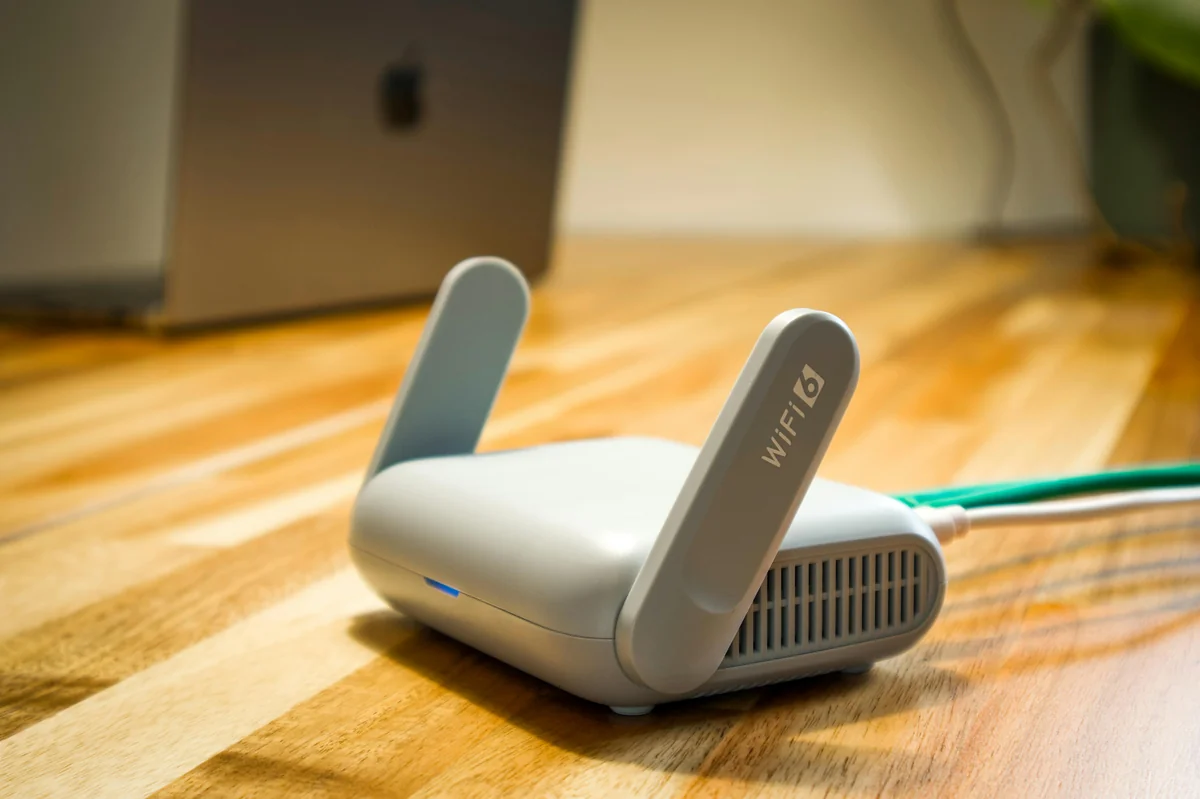
Download IPTV One from the App Store, Microsoft Store, Google Play, or Snap Store — free on all platforms.
Ready to try the best IPTV player?
Download IPTV One free on your preferred platform. 4K HDR, cloud sync, and multi-device support.
IPTV One is a media player application. It does not provide, host, or distribute any TV content. Users are responsible for their own content sources.