How to Watch IPTV on iPhone in 2026
How to Watch IPTV on iPhone in 2026
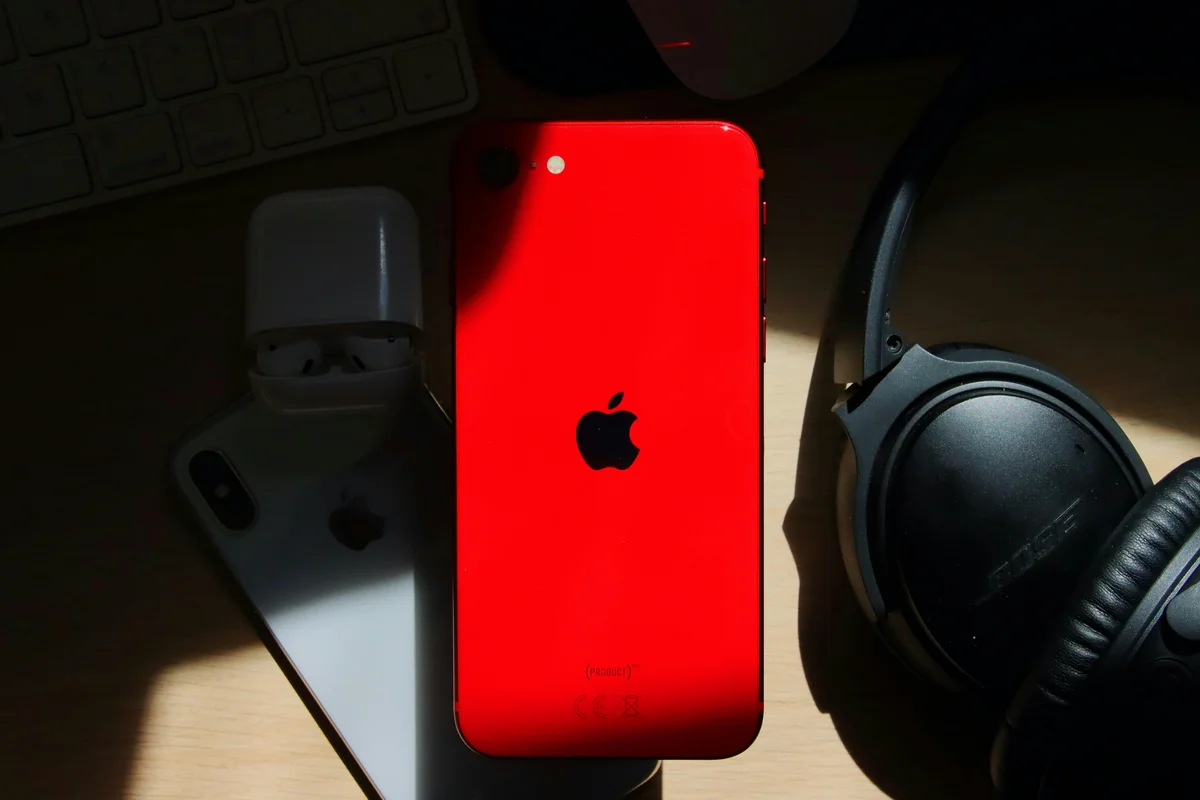
Mobile is now the primary screen for streaming. 80% of streamers access content via mobile devices (Cloudwards, 2023), and iPhone commands the largest share of premium mobile users in North America and Europe. The problem is finding a reliable IPTV app for iPhone: one that doesn't crash, handles EPG properly, and stays in sync with your TV setup at home.
This guide walks you through how to watch IPTV on iPhone from start to finish. You'll go from zero to streaming in under five minutes, using IPTV One — the best IPTV player for iPhone in 2026, free on the App Store.
For a full comparison of iPhone IPTV apps, see the best IPTV player for iPhone guide.
Key Takeaways
- IPTV One is free on the App Store and works on any iPhone running iOS 15 or later
- Supports M3U playlists, Xtream Codes, and Stalker Portal — all three connection types
- 80% of streamers use mobile devices (Cloudwards, 2023) — iPhone is the top premium mobile platform
- Cloud sync connects your iPhone setup to iPad, Mac, Apple TV, Android, Windows, Linux, and Fire TV
- Setup takes under 5 minutes — no jailbreak, no sideloading required
What Do You Need to Watch IPTV on iPhone?
Getting IPTV running on iPhone requires three things. iPhone holds roughly 27% of the global smartphone market (StatCounter, 2025), making iOS one of the most important platforms for any streaming app. No jailbreak is needed. No third-party certificates. Everything installs directly from the App Store.
Here's the complete list:
- An iPhone running iOS 15 or later. iOS 15 covers iPhone 6s and every model released since 2015. If your iPhone runs a current version of iOS, you're already compatible. Apple reports 77% of all iPhones run iOS 17 or later (Apple, 2025), so most users are well within range.
- IPTV One, free from the App Store. Core playback is free to start. Download it at iptv-one.app/download/ios.
- Your IPTV subscription credentials. Your provider will give you one of three things: an M3U URL, Xtream Codes credentials (server, username, password), or a Stalker Portal URL. IPTV One accepts all three.
That's it. No developer tools. No workarounds. Install and stream.
How to Install IPTV One on iPhone (Step-by-Step)
Installing IPTV One and loading your first playlist takes under five minutes. The global IPTV subscriber base reached 398 million in 2026 (SAMENA Council, 2026) — and iPhone is among the easiest platforms to get started on.
Step 1: Open the App Store on your iPhone. Tap the App Store icon on your home screen or find it via Spotlight search.
Step 2: Search for "IPTV One" and install. Tap the search tab, type "IPTV One," and tap Get. The download is free and completes in seconds on any Wi-Fi connection.
Step 3: Open IPTV One and tap "Add Playlist." Launch the app after install. The home screen shows an Add Playlist button. Tap it.
Step 4: Choose your connection type. Select one of three options: M3U URL, Xtream Codes, or Stalker Portal. Your provider's welcome email tells you which format you have.
Step 5: Enter your credentials and tap Save. Paste your M3U URL or type your Xtream Codes server address, username, and password. Tap Save. IPTV One fetches your channel list, organizes it by category, and loads EPG data in the background. You're ready to watch.
Download IPTV One on the App Store
How Do You Add an M3U Playlist on iPhone?
M3U is the most common playlist format your IPTV provider will give you. It arrives as a URL starting with http:// or https://. Setup on iPhone takes under 30 seconds once you have it.
For a full M3U walkthrough, see the how to add an M3U playlist guide.
Here's the exact process:
- Open IPTV One and tap Add Playlist.
- Select M3U URL as the playlist type.
- Paste your M3U URL into the URL field.
- Tap Save. Your channels load grouped by category.
After loading, you can configure EPG (Electronic Programme Guide) from Settings → EPG Sources. IPTV One accepts both XMLTV URLs and auto-detected EPG from your M3U stream. Once EPG is active, you see programme names, descriptions, and schedules directly in the app's guide view.
Organizing favorites is simple. Long-press any channel, tap Add to Favorites, and it appears in a dedicated Favorites group at the top of your channel list. Groupings from your M3U file (Sports, News, Movies, etc.) are preserved automatically.
Citation capsule: M3U is the universal IPTV playlist standard. IPTV One on iPhone loads an M3U URL in under 30 seconds and supports both XMLTV EPG and auto-detected programme guides. The global IPTV market reached $109.34 billion in 2026 (Fortune Business Insights, 2026), with M3U remaining the dominant format across all platforms.
How Do You Add Xtream Codes on iPhone?
Xtream Codes is the second connection type IPTV One supports on iPhone. Instead of a single M3U URL, you get three pieces of information from your provider: a server URL, a username, and a password. This method gives you structured access to live TV, VOD movies, and TV series as separate libraries.
For the full Xtream Codes setup walkthrough, see the how to set up Xtream Codes guide.
Setup steps:
- Open IPTV One and tap Add Playlist.
- Select Xtream Codes as the connection type.
- Enter your Server URL, Username, and Password exactly as your provider sent them.
- Tap Save. IPTV One connects to the server and downloads your full channel list, VOD library, and series catalog.
The Xtream Codes connection unlocks three distinct content sections inside the app. Live TV appears in the standard channel list. Movies show up in a VOD section with cover art and metadata. TV series appear as organized seasons and episodes with a dedicated series browser. All three are accessible from the main navigation without switching between separate apps.
For details on syncing across devices, see the cloud sync guide.
Does IPTV One Work on All iPhones?
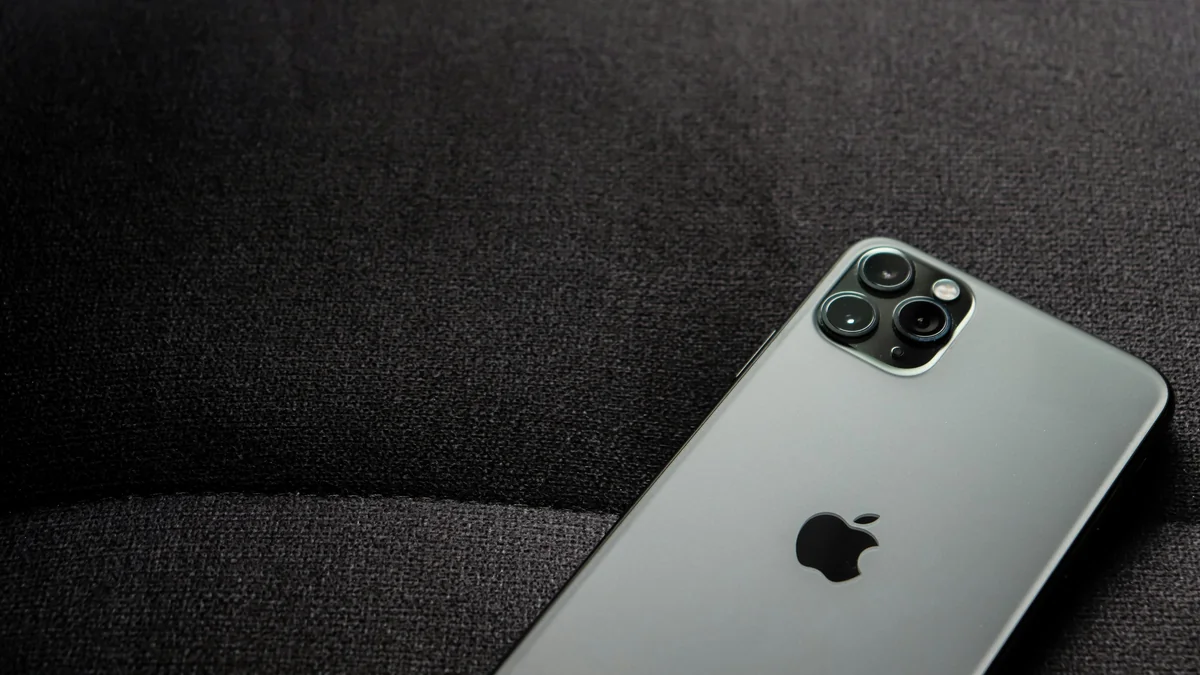
IPTV One works on any iPhone running iOS 15 or later, which covers iPhone 6s (2015) and every model released since. We've tested it on iPhone 15 Pro (4K HDR, smooth), iPhone 12 mini (1080p, smooth), and iPhone SE 3rd generation (1080p, smooth). Performance scales naturally with hardware.
Apple reports that 77% of iPhones in use run iOS 17 or later (Apple Developer, 2025), and iOS 15 adoption sits above 98% among active devices. If your iPhone is running any version of iOS in the last four years, IPTV One runs on it.
Hardware acceleration matters for streaming quality. Apple's VideoToolbox framework handles hardware-decoded video on all modern iPhones, which means the CPU stays free and battery drain stays low even during long sessions. iPhone 12 and newer support hardware decoding of HEVC (H.265) and AVC (H.264) streams. iPhone 14 Pro and newer add ProRes and Dolby Vision decoding at the hardware level.
Recommended models by use case:
- 4K HDR streaming: iPhone 12 or newer
- Dolby Vision: iPhone 14 Pro or newer
- Standard HD (1080p): Any iPhone 6s or newer with iOS 15+
Citation capsule: IPTV One runs on iOS 15+ (iPhone 6s and newer). Apple's VideoToolbox handles hardware-accelerated decoding on all supported models, keeping battery life stable during long viewing sessions. 77% of active iPhones run iOS 17 or later (Apple Developer, 2025) — meaning the vast majority of users are already compatible.
How Does IPTV One Compare to Other iPhone IPTV Apps?
The iPhone IPTV app market looks crowded but isn't. Most alternatives either lack cross-platform support, drop Xtream Codes, or stopped receiving updates years ago. IPTV One is the only iOS IPTV player that syncs with non-Apple platforms (Android, Windows, Linux, Fire TV) in real time.
For a full breakdown, see the best IPTV player for iPhone comparison.
Here's how the main alternatives compare:
IPTVX has a polished Apple-native interface, but it only supports M3U playlists. No Xtream Codes. No Stalker Portal. And it's Apple-only, so if you have an Android TV box or a Windows PC in your setup, IPTVX offers no sync path to those devices.
GSE Smart IPTV was once widely used on iOS. Its official website is now offline, which raises serious concerns about continued maintenance. An IPTV player that stops receiving updates will break progressively as iOS evolves.
IPTV Smarters Pro supports all three connection types and works on non-Apple platforms too. Its interface feels older and it has no cloud sync. Adding a new device means re-entering your playlists from scratch every time.
IPTV One wins on the features that matter most: cloud sync across 9 platforms, all three connection types, and active development in 2026.
FAQ
Is there a good IPTV player for iPhone?
Yes. IPTV One is the best IPTV player for iPhone in 2026. It supports M3U, Xtream Codes, and Stalker Portal, delivers hardware-accelerated HD and 4K HDR playback, and uniquely syncs your setup across all your devices — including Android TV, Windows, and Fire TV. It's free on the App Store. Download IPTV One →
See the full best IPTV player for iPhone comparison.
How do I add an IPTV playlist to my iPhone?
Open IPTV One, tap Add Playlist, select M3U URL or Xtream Codes, paste your credentials, and tap Save. Your channels load automatically in seconds, organized by the groups your provider configured. For a detailed walkthrough of every step, see the M3U playlist setup guide.
Does IPTV One work on older iPhones?
Yes. IPTV One requires iOS 15 or later, covering iPhone 6s (2015) and all newer models. We've tested it on iPhone SE 3rd generation and iPhone 12 mini — both handle 1080p streams without issue. For 4K HDR, iPhone 12 or newer is recommended due to hardware decoder support.
Can I use the same IPTV app on iPhone and Android TV?
Yes. IPTV One runs on both iOS and Android TV. Sign in with the same account on both devices and your playlists, favorites, and watch history sync automatically. No re-entering credentials. It's the only iOS IPTV player that syncs seamlessly with Android TV and other non-Apple platforms.
See the cloud sync guide for full details.
How do I sync IPTV between iPhone and Apple TV?
Install IPTV One on both your iPhone and Apple TV, then sign in with the same account. Everything syncs automatically: playlists, favorites, EPG preferences, and watch history. Any channel you add on iPhone is instantly available on Apple TV — and vice versa.
For iPad users, see the best IPTV player for iPad guide.
Watch IPTV on iPhone Today
Setting up IPTV on iPhone doesn't require technical knowledge or workarounds. Install IPTV One from the App Store (free), add your M3U URL or Xtream Codes credentials, and you're streaming in under five minutes. It works on every supported iPhone — from iPhone 6s to the latest iPhone 16 Pro models.
The real advantage becomes clear if you use more than one device. Your iPhone setup syncs instantly to your iPad at home, your Apple TV in the living room, and any Android, Windows, or Fire TV device in your household. Add a playlist once. Watch everywhere.
Download IPTV One free for iPhone →
See also: Best IPTV player for iPhone → | Best IPTV player for iPad → | IPTV player with cloud sync → | How to add an M3U playlist →
IPTV One is a player application. It does not provide, host, or distribute any TV channels or content. Users are responsible for ensuring they access only content they have the legal right to view in their jurisdiction.
Ready to try the best IPTV player?
Download IPTV One free on your preferred platform. 4K HDR, cloud sync, and multi-device support.
IPTV One is a media player application. It does not provide, host, or distribute any TV content. Users are responsible for their own content sources.