How Much Bandwidth Does IPTV Use? Complete Guide for 2026

Your IPTV stream keeps freezing. The internet speed test shows 200 Mbps. So what is actually going wrong?
Bandwidth for IPTV is not just about raw speed. Codec support, connection type, router configuration, and the number of simultaneous streams all determine whether you get smooth 4K or constant buffering. The difference between a frustrating experience and a perfect one often comes down to a few settings.
This guide covers exact IPTV bandwidth requirements by resolution, explains why codec choice can cut your data usage by 50%, and shows you how to calculate the bandwidth your household actually needs. You will also find practical steps to optimize your connection and fix buffering when it occurs.
Key Takeaways
- SD IPTV requires 2-4 Mbps; HD (720p) needs 4-5 Mbps; Full HD (1080p) needs 8-12 Mbps
- 4K H.265/HEVC uses 15-25 Mbps; 4K H.264 can use 50-80 Mbps — codec choice matters enormously
- H.265/HEVC reduces bandwidth requirements by 40-50% compared to H.264 at the same visual quality
- For a household with three simultaneous streams at different qualities, plan for at least 50-75 Mbps
- Ethernet is always more reliable than WiFi; 5 GHz WiFi outperforms 2.4 GHz for streaming
- Buffering is often a router or codec issue, not an internet speed issue
How Much Bandwidth Does IPTV Actually Use?
IPTV bandwidth requirements vary widely depending on resolution, codec, and how the stream is encoded by your content source. Here are the real-world figures you should plan around:
| Resolution | Codec | Bandwidth Required |
|---|---|---|
| SD (480p) | H.264 | 2-4 Mbps |
| HD (720p) | H.264 | 4-5 Mbps |
| Full HD (1080p) | H.264 | 8-12 Mbps |
| Full HD (1080p) | H.265 | 4-6 Mbps |
| 4K UHD | H.264 | 50-80 Mbps |
| 4K UHD | H.265/HEVC | 15-25 Mbps |
These numbers represent sustained bitrates for live TV streams. VOD content can vary — some providers encode movies at higher bitrates for better quality, while others compress aggressively to reduce server costs.
A few points worth understanding. First, your internet connection speed and the stream's bitrate are two different things. A 100 Mbps connection can handle a 25 Mbps stream easily. But if your router is also managing game downloads, video calls, and a dozen smart home devices simultaneously, available bandwidth shrinks fast. Second, IPTV streams are continuous — unlike file downloads, there is no buffering ahead. The bandwidth must be consistent, not just fast in peak bursts.
The practical minimum for reliable IPTV:
- SD on a single device: 5 Mbps sustained
- Full HD on a single device: 15 Mbps sustained
- 4K H.265 on a single device: 30 Mbps sustained (with headroom)
- 4K H.264 on a single device: 100 Mbps sustained (with headroom)
Adding headroom of 20-30% above the stream bitrate prevents buffering when your network experiences brief congestion spikes.
H.265 vs H.264: Why Codec Matters for Bandwidth
The codec your IPTV stream uses is one of the most important factors in bandwidth consumption. Yet most users never think about it.
H.264 (AVC) has been the streaming standard since the mid-2000s. It is widely supported and universally compatible, but it was designed for an era when 1080p was considered high-end. A 4K H.264 stream requires 50-80 Mbps — more than some home connections can sustain reliably.
H.265/HEVC delivers the same visual quality at roughly half the bitrate. A 4K stream that requires 65 Mbps in H.264 needs only 15-25 Mbps in H.265. That is a bandwidth reduction of 40-60%. For households with multiple screens, this difference is decisive.
The trade-off is processing power. H.265 decoding requires more from your device's processor or dedicated video hardware. Modern devices handle it with hardware-accelerated decoding, which offloads the work from the CPU to a dedicated chip. On older hardware without hardware decoding support, H.265 can cause high CPU usage and frame drops.
IPTV One's player engine supports H.265/HEVC with hardware-accelerated decoding across all platforms. On Android, Android TV, Fire TV, iOS, macOS, Windows, Linux, and Apple TV, the player automatically uses hardware decoding when available, keeping CPU usage low and playback smooth even at 4K. You can select your preferred codec in the player settings to match what your content source provides.
A newer standard, AV1, is emerging as the successor to H.265 with an additional 20-30% efficiency gain. IPTV One supports AV1 as well, though most IPTV sources still encode primarily in H.264 or H.265 as of 2026.
How to Calculate Bandwidth for Multiple Devices
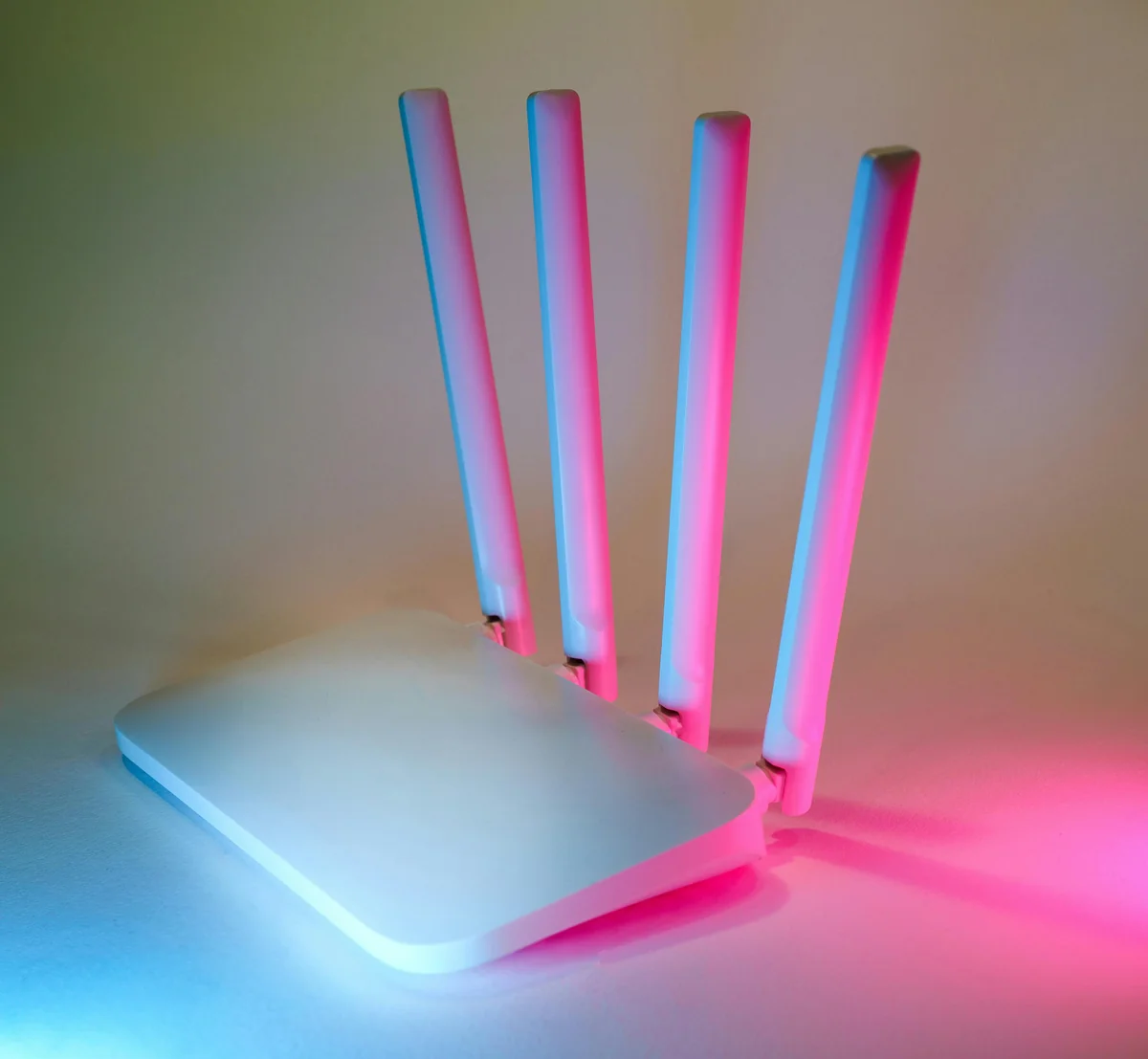
Single-device calculations are straightforward. A household is not. Here is how to calculate the bandwidth you actually need.
Step 1: List Your Simultaneous Streams
Think about the peak usage scenario in your home. Not what happens at 3 AM, but what happens on a Saturday evening when everyone is home.
Write down each device that could be streaming IPTV simultaneously, and the quality it will play:
- Living room TV: 4K H.265 = 25 Mbps
- Bedroom TV: Full HD = 12 Mbps
- Tablet (child): SD = 4 Mbps
- Phone (second adult): Full HD = 10 Mbps
Step 2: Add Up the Stream Bitrates
Total in this example: 25 + 12 + 4 + 10 = 51 Mbps
Step 3: Add 30% Overhead
Network overhead, brief congestion spikes, background app updates, and other connected devices all consume bandwidth. Add a minimum 30% buffer:
51 Mbps × 1.3 = 66 Mbps required
Step 4: Consider Non-IPTV Devices
Smart TVs, games consoles, smart home hubs, security cameras, and computers all use bandwidth. A single 4K gaming session or a video call adds 10-25 Mbps on top of your IPTV usage. In a modern connected home, 100 Mbps is a practical minimum for comfortable multi-device IPTV alongside general internet use.
Quick Reference: Recommended Internet Speed by Household Size
| Household Profile | Recommended Speed |
|---|---|
| Single viewer, HD | 20 Mbps |
| Single viewer, 4K H.265 | 35 Mbps |
| Two viewers, mixed quality | 50 Mbps |
| Three or more streams, mixed | 100 Mbps |
| Power household, 4K on multiple screens | 200 Mbps+ |
IPTV One's cloud sync feature works across all eight platforms with minimal background bandwidth. The sync itself uses only a few kilobytes per operation and will not affect your streaming bandwidth.
How to Optimize Your Connection for IPTV
Fast internet speeds mean nothing if the path from your router to your streaming device is unreliable. Connection quality matters as much as connection speed for IPTV.
Ethernet vs WiFi: Always Choose Ethernet When Possible
A wired Ethernet connection is superior for IPTV in every measurable way. Latency drops from 5-20 ms on WiFi to under 1 ms on Ethernet. Packet loss, which causes the brief freezes and artifacts in IPTV streams, is virtually zero on Ethernet versus 0.1-2% on typical WiFi. Bandwidth is consistent rather than fluctuating with interference.
If running a cable is not practical, a powerline adapter (Ethernet over your home's electrical wiring) is the next best option. It delivers Ethernet-like consistency without the cable routing.
5 GHz WiFi vs 2.4 GHz WiFi
If you must use WiFi, always choose 5 GHz over 2.4 GHz for your streaming devices.
2.4 GHz WiFi has greater range but is shared with Bluetooth devices, microwaves, baby monitors, and every neighboring router. The congestion regularly causes the brief signal interruptions that translate into IPTV buffering. 5 GHz is less congested, delivers higher throughput at typical in-home distances (up to 15 meters from the router), and is far more consistent for streaming.
WiFi 6 (802.11ax) and WiFi 6E routers reduce congestion further with more efficient channel management. If your router is more than five years old and you stream 4K, upgrading the router often has more impact than upgrading your internet plan.
QoS (Quality of Service) on Your Router
Most modern routers support Quality of Service, a feature that prioritizes certain types of network traffic. Configuring QoS to prioritize your streaming device or to give IPTV traffic high priority prevents a background download or a video call from starving your stream of bandwidth.
Access your router admin panel (typically at 192.168.1.1 or 192.168.0.1) and look for QoS settings. Some routers call it "Traffic Prioritization" or "Device Priority." Set your TV or streaming device to the highest priority. This alone eliminates buffering for many users who reported issues despite adequate internet speeds.
Choosing the Right Codec in IPTV One Settings
In IPTV One, you can configure playback settings to match your connection and hardware:
- If your source provides H.265 streams and your device supports hardware decoding, select H.265 in player settings for maximum bandwidth efficiency
- Enable hardware-accelerated decoding to offload video processing from the CPU
- Adjust buffer size settings if your connection has inconsistent speeds — a larger buffer absorbs brief bandwidth dips
Troubleshooting IPTV Buffering Caused by Bandwidth

Buffering is the most common IPTV complaint, and bandwidth is blamed first. But in practice, bandwidth is responsible for less than half of buffering issues. Here is a systematic troubleshooting approach.
Diagnose Before You Fix
Run a speed test at fast.com or speedtest.net from the device experiencing buffering, not from another device. A result showing 80% or more of your subscribed speed confirms bandwidth is not the problem.
Next, check whether the buffering is consistent across all channels or only specific ones. If specific channels buffer while others do not, the issue is with the content source's servers, not your connection.
Common Causes and Fixes
Cause: WiFi interference Symptom: Buffering worsens in the evening or when neighbors are home. Fix: Switch to 5 GHz band, use Ethernet, or change your router's WiFi channel to a less congested one (use a WiFi analyzer app to find the clearest channel).
Cause: Router congestion Symptom: Buffering improves when other devices are disconnected. Fix: Enable QoS on your router and prioritize the streaming device. Consider upgrading to a router with better multi-device handling (WiFi 6 class routers handle concurrent connections more efficiently).
Cause: Wrong codec / missing hardware decoding Symptom: Buffering or frame drops with high-resolution streams, high CPU usage visible in device settings. Fix: In IPTV One, enable hardware decoding in player settings. If the source provides H.264 and your device handles H.265, this may not help — but enabling hardware decoding for whatever codec is in use will reduce CPU load and prevent frame drops on underpowered devices.
Cause: DNS latency Symptom: Initial channel load is slow (3-10 seconds to start a stream) but playback is smooth once started. Fix: Change your device's DNS to a faster provider. Google (8.8.8.8) or Cloudflare (1.1.1.1) typically resolve faster than ISP-provided DNS. This reduces stream initialization time significantly.
Cause: Insufficient buffer size Symptom: Brief, regular pauses during playback, especially on HD or 4K streams. Fix: In IPTV One's advanced playback settings, increase the buffer size. A larger buffer (3-8 seconds) absorbs bandwidth fluctuations on variable-speed connections.
When the Problem Is the Source, Not Your Connection
Some IPTV sources encode streams at variable quality, use overloaded servers during peak hours, or transmit streams with suboptimal encoding. If you have ruled out all local network issues and buffering persists, the limitation is upstream. A well-configured IPTV player like IPTV One maximizes what your connection and hardware can deliver, but it cannot compensate for a source that is delivering an inconsistent bitstream.
FAQ
How much bandwidth does IPTV use for 4K?
4K IPTV encoded in H.265/HEVC requires 15-25 Mbps. The same stream encoded in H.264 can require 50-80 Mbps. Using an IPTV player that supports H.265, like IPTV One, significantly reduces your bandwidth needs for 4K content.
What internet speed do I need for IPTV?
For a single HD stream (1080p), 10-15 Mbps is sufficient. For a household with multiple devices streaming simultaneously, aim for 50-100 Mbps. For 4K on multiple screens, 100 Mbps or more is recommended.
Does IPTV use more data than Netflix?
IPTV data usage is comparable to other streaming services. SD streams use 2-4 Mbps, HD uses 5-12 Mbps, and 4K H.265 uses 15-25 Mbps. Netflix 4K uses approximately 15-20 Mbps, so the figures are similar for equivalent quality.
Why does IPTV keep buffering even with fast internet?
Buffering is not always caused by slow internet. Common causes include WiFi interference (switch to Ethernet or 5 GHz WiFi), router congestion (enable QoS), wrong codec settings (try H.265 in your player), or a weak signal from your content source.
Does WiFi affect IPTV quality?
Yes, significantly. WiFi adds latency and is prone to interference. Ethernet connections deliver consistent bandwidth with near-zero packet loss. If Ethernet is not possible, use 5 GHz WiFi rather than 2.4 GHz, which is more congested and slower at typical streaming distances.
Conclusion
IPTV bandwidth requirements range from 2 Mbps for an SD stream to 80 Mbps for a single 4K H.264 channel. The single most impactful change most users can make is switching to an IPTV player with full H.265/HEVC support, cutting 4K bandwidth needs from 65 Mbps to 20 Mbps. The second most impactful change is moving from 2.4 GHz WiFi to Ethernet or 5 GHz WiFi.
For a typical household streaming two to three channels simultaneously at mixed quality, a 100 Mbps connection with QoS enabled on the router and Ethernet on the main TV is the optimal setup.
IPTV One delivers hardware-accelerated H.265/HEVC decoding, configurable buffer settings, and smooth 4K HDR playback across all eight platforms: Android, Android TV, Fire TV, iOS, macOS, Windows, Linux, and Apple TV. Your settings and favorites sync across every device via cloud sync, so your optimized setup follows you everywhere.
Try IPTV One free and experience the bandwidth-efficient playback your connection deserves. Free to start, premium when you're ready.
IPTV One is a media player application. It does not provide, host, or distribute any TV channels or content. Users connect their own IPTV sources.
Ready to try the best IPTV player?
Download IPTV One free on your preferred platform. 4K HDR, cloud sync, and multi-device support.
IPTV One is a media player application. It does not provide, host, or distribute any TV content. Users are responsible for their own content sources.